
You can access your member card in the member portal by following these steps.
Log in to the member portal or mobile app.
Computer
In the left side navigation pane, click on Membership Card.
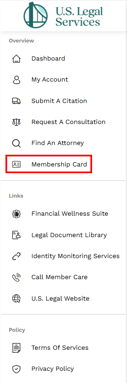
This will bring up your card in the middle section of the screen.
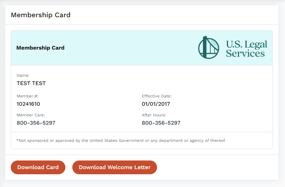 Your membership card will have your name, Member #, and effective date.
You can click Download Card to download a printable .pdf file of your card.

You can click on Download Welcome Letter to download a printable .pdf of the welcome letter you were sent when you first signed up.

Note: Documents will download onto your computer or phone to the folder you have set for either browser or app downloads. The default folder for computers is the Downloads folder.
Mobile
NOTE: The menu to access all of the Member Portal content on mobile will be under the "hamburger menu" to the right of the logo. Clicking it will show and hide the side navigation menu.
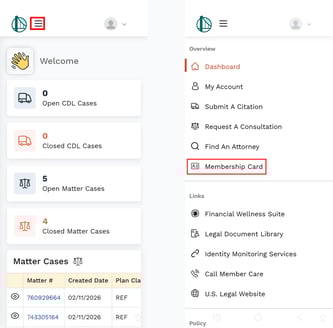
Once you have the navigation menu open, it works the same as on a computer. Simply click on your choice, in this case, Membership Card, and you will be taken there.
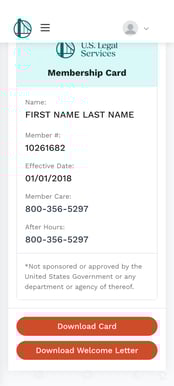
Note: If you choose to download the PDF version of your membership card to your phone, you will be prompted to select how you would like to open the file. Most smartphones come equipped with Adobe Acrobat Reader or a similar PDF viewer.
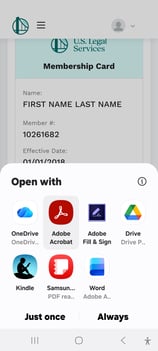
If your device does not have one installed, you can download a free PDF reader from your device’s app store.