
Adobe Acrobat is a widely used, free PDF reader that also allows you to digitally sign documents.
You can download Adobe Acrobat here: https://get.adobe.com/reader/
Note: U.S. Legal Services provides this information as a courtesy and is not responsible for the functionality or performance of Adobe Acrobat.
Once you have downloaded the agreement and read through it, you can now:
- Digitally sign the agreement with Adobe Acrobat
- Save the signed file to your computer
- Email it to attorneyinfo@uslegalservices.net
- Upload to the attorney portal.
- Save the signed file to your computer
- Print it out and physically sign and date it.
- Scan the completed agreement
- Email it to attorneyinfo@uslegalservices.net
- Upload to the attorney portal.
- Scan the completed agreement
To digitally sign and date the agreement using Adobe Acrobat, follow the instructions below.
Make sure Adobe Acrobat is loaded onto your machine.
You can download it here: https://get.adobe.com/reader/
Launch Adobe Acrobat.
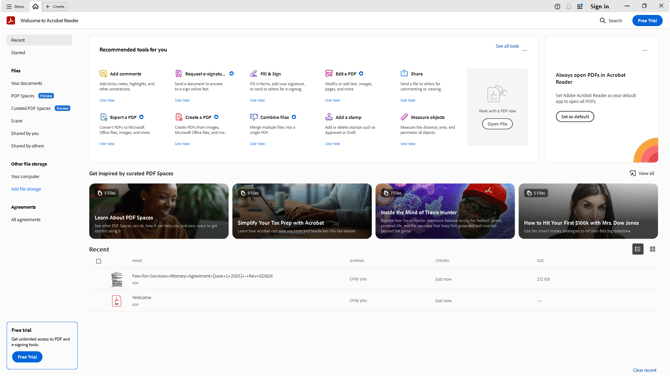 Click Fill & Sign.
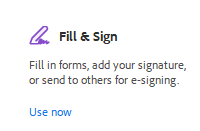 You will be taken to the main Fill & Sign screen.
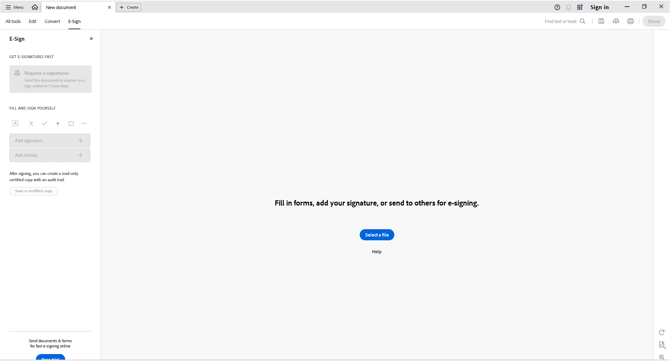 Click Select File.
 This will open an Explorer window so you can find the copy of the agreement that you downloaded. Most computers default to a Downloads folder.
Once you find the file, click on it and open it.
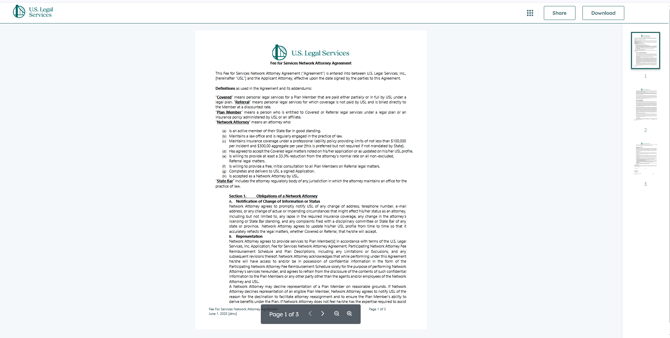
I read the agreement. If you have already read it, scroll to the bottom of the third page.
In the left side bar, click the + on Add Signature.
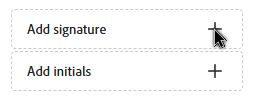
This will open a signature pop-up where you have three choices of the type of signature to add.
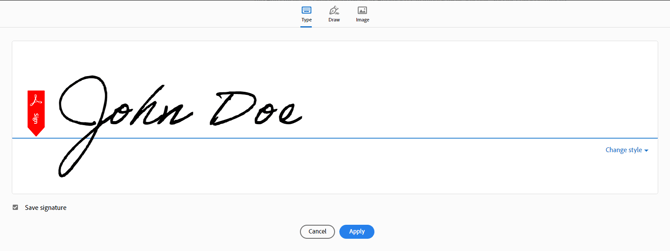
You can simply type your signature.
You can draw your signature with your mouse or trackpad.
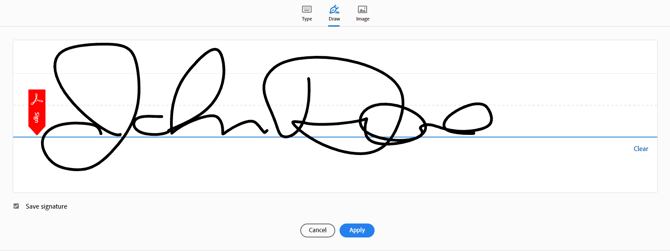
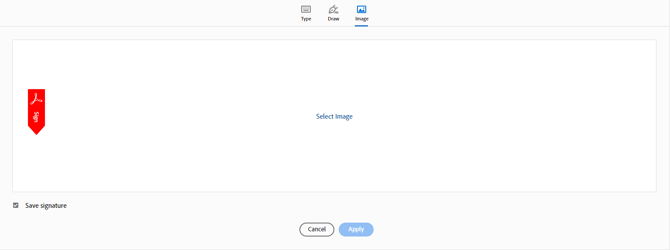
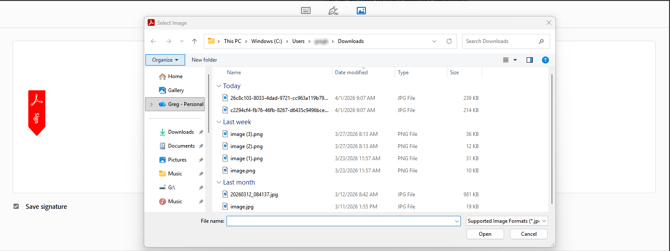
You can upload a scan of your signature to use. Simply click on Select File, and an explorer window will open for you to select the file.
 Once you have created a signature, you will be taken back to the document where the signature will have been initially placed on the signature line.
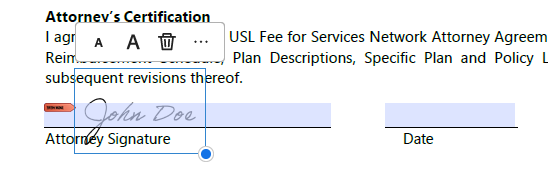 You can resize it or delete it. If you are happy with it, you can simply click in the date field.
The date field supplies a date picker for you to use to apply the date.
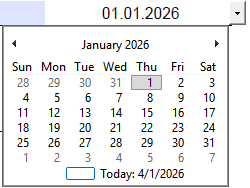
Once you have applied the date, you can click on the image of the diskette in the top right of the screen and save the file with the signature onto your computer.

This will open an initial save file window with options.
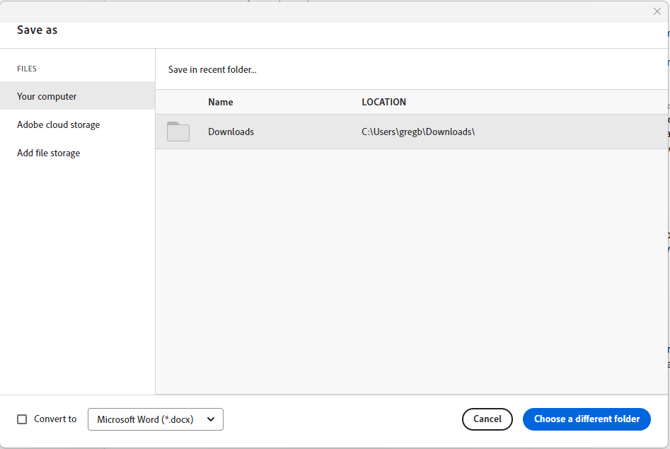
Selecting My Computer will open an Explorer window allowing you to select the folder you wish to save the file in and the ability to rename the file.
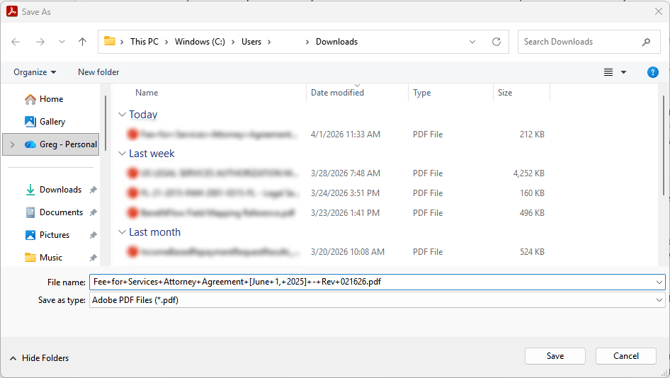
Once the file is saved, you can:
- Email it to attorneyinfo@uslegalservices.net
- Upload to the attorney portal.
The above instructions are use-case specific. To learn more about Adobe Acrobat and how it functions, you can access their Help Guides.
Step-by-step help guides for e-signing with Adobe Acrobat are available here: https://helpx.adobe.com/acrobat/desktop/e-sign-documents/fill-sign-documents/add-esign.html