
Navigation within the Attorney Portal is organized into two primary areas: the left-side panel and the top navigation bar.
The top navigation bar
Includes the following:

-
Home
-
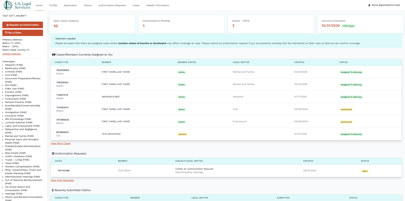
Your main dashboard displays:
-
-
Cases and Members currently assigned to you
-
Authorization Requests
-
Recently Submitted Claims
-
-
This page provides a quick snapshot of your current activity within the Attorney Portal.
-
-
-
Profile
-
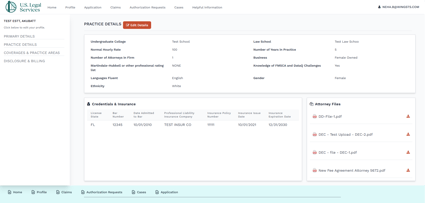
This section allows you to access, review, and update your professional information, including:
-
Primary Details
-
Practice Details
-
Coverages & Practice Areas
-
Disclosure & Billing
-
-
Please ensure all information remains current to avoid delays in case assignments or claim processing.
-
-
Claims
-
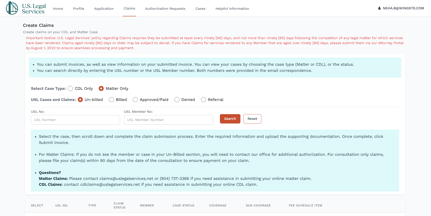
This page allows you to submit and review claims.
-
Submit invoices for cases you have completed and were authorized to handle.
- Important Notice
- U.S. Legal Services’ policy requires that claims be submitted:
- At least every ninety (90) days, and
- No later than ninety (90) days following completion of the legal matter.
- Claims aged ninety (90) days or older may be subject to denial.
- Important Notice
- Matter Case Claims
- Matter Case claims received prior to Friday each week will be processed for payment on Monday of the following week.
- In certain cases, supporting documentation will be required. If applicable, you will be prompted to upload the necessary documentation during the claim submission process.
- CDL Case Claims
- When filing a claim for a covered CDL citation case:
- A court disposition must be uploaded.
- If a court disposition is not available, please provide a written statement outlining the case outcome on your firm’s letterhead.
- Processing Timeline:
- Claims received before the 24th of the month will be processed for payment that same month. Checks are issued on the 5th business day of the month.
- Claims received after the 24th will be processed the following month.
- When filing a claim for a covered CDL citation case:
-
-
Authorization Requests
-
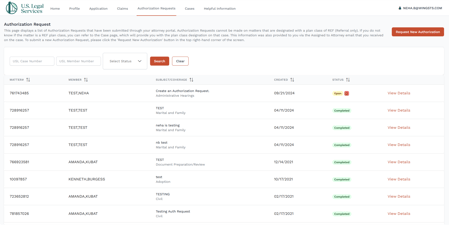
This page displays all Authorization Requests submitted through your Attorney Portal.
-
Please note:
-
Authorization Requests cannot be submitted for matters designated with a plan class of REF (Referral Only).
-
If you are unsure whether a matter is REF:
-
Refer to the Case page, which displays the plan class designation.
-
Review the “Assigned to Attorney” email you received for that case.
-
-
To submit a new Authorization Request, click the “Request New Authorization” button located in the top right-hand corner of the screen.
-
-
-
-
Cases
-
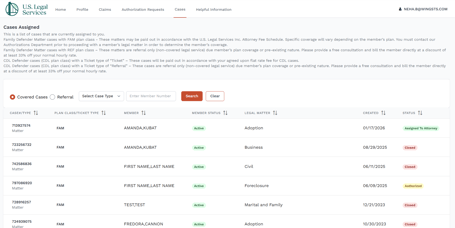
This section lists all cases currently assigned to you.
-
Family Defender – FAM Plan Class
-
These matters may be paid in accordance with the U.S. Legal Services Inc. Attorney Fee Schedule.
-
Coverage varies depending on the member’s plan.
-
You must contact the Authorizations Department prior to proceeding with the member’s legal matter to confirm coverage.
-
-
Family Defender – REF Plan Class
-
These matters are referral only due to the member’s plan coverage or the pre-existing nature of the matter.
-
Please provide a free consultation.
-
Bill the member directly at a minimum discount of 33% off your standard hourly rate.
-
-
CDL Defender – CDL Plan Class (Ticket Type: “Ticket”)
-
These cases will be paid in accordance with your agreed-upon flat-rate fee for CDL matters.
-
-
CDL Defender – CDL Plan Class (Ticket Type: “Referral”)
-
These matters are referral only (non-covered legal services) due to the member’s plan coverage or pre-existing nature.
-
Please provide a free consultation.
-
Bill the member directly at a minimum discount of 33% off your standard hourly rate.
-
-
-
-
Helpful Information
-
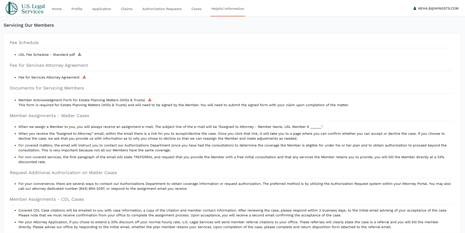
Contains some helpful information on the following:
-
Fee Schedule & Agreements
-
Attorneys should reference the USL Fee Schedule and the Fee for Services Attorney Agreement for payment terms and service guidelines.
-
-
Required Documents
-
For Estate Planning matters (Wills & Trusts), a signed Member Acknowledgment Form is required and must be submitted with the claim.
-
-
Member Assignments – Matter Cases
-
Assignment notifications are sent via email (“Assigned to Attorney”).
-
Attorneys must accept or decline cases using the link provided in the email.
-
For covered matters, attorneys must contact the Authorizations Department after the consultation to confirm coverage before proceeding.
-
Referral (REF) matters require a free consultation, with services billed directly to the member at a minimum 33% discount.
-
-
Requesting Authorization
-
The preferred method is through the Authorization Request system in the Attorney Portal. Attorneys may also call the dedicated number or reply to the assignment email.
-
-
Member Assignments – CDL Cases
-
Covered CDL cases require acceptance within 2 business days via email confirmation.
-
Referral CDL cases are billed directly to the member at the agreed 33% discount.
-
A disposition form must be completed at the conclusion of referral cases.
-
-
Filing Claims
-
Claims must be submitted through the Attorney Portal within 90 days of completion.
-
Late claims may be denied.
-
Matter Claims:
-
Processed weekly if received before Friday.
-
-
CDL Claims:
-
Require court disposition (or firm letter if unavailable).
-
Claims received before the 24th are paid the following month; those received after are processed the next month.
-
-
-
Left-side navigation Panel
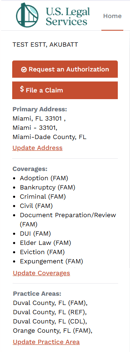
Includes the following:
-
Request an Authorization button

-
Submit an authorization request for eligible matters.
-
Please check back periodically for the status of your request. You will also receive an email notification once a determination has been made.
-
Authorization requests cannot be submitted for matters designated with a plan class of REF (Referral Only).
-
If you are unsure whether a matter is classified as REF:
-
Refer to the Case page, where the plan class designation is displayed.
-
Review the “Assigned to Attorney” email you received, which includes the plan class information.
-
-
-
- File a Claim

-
- Submit invoices for cases you have completed and were authorized to handle.
- It is the same page you are directed to when selecting Claims from the top navigation bar. (see explanation above)
- Update Address
- Enter your name, contact information, and address details exactly as you would like them to appear in the attorney directory.
- Coverages
- Displays the areas of coverage in which you practice.
Please ensure this section remains up to date.
- Update Coverages (located as a hyperlink under your list of coverages) – Use this option to make changes.
- Displays the areas of coverage in which you practice.
- Practice Areas
- Displays the jurisdictions and areas in which you are licensed to practice.
Please ensure this section remains up to date.
- Update Practice Areas (located as a hyperlink under your list of practice areas) – Use this option to make changes.
- Displays the jurisdictions and areas in which you are licensed to practice.