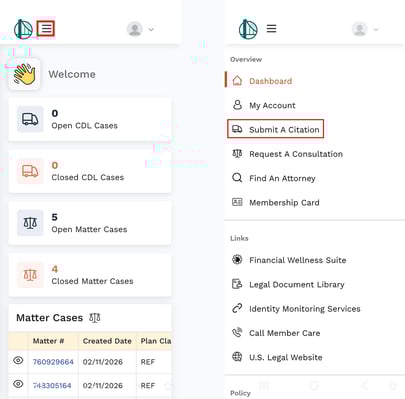
If you are a commercial driver and are covered by our CDL Defender plan, the quickest and most efficient way to submit a citation is via the member portal, either via a computer or using the mobile app.
-
Log in to the member portal.
-
Click Submit A Citation in the left-side navigation panel.
-
This will open up the submission form.
-
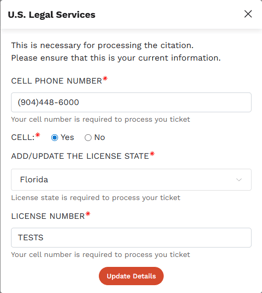
Click Update my Information at the top of the form.

- Review the information to make sure it is correct.
-
If you make changes, click Update Details.
-
Otherwise, if everything is correct, click the X in the top right of the pop-up.
- Fill out the Submit a Citation Form.
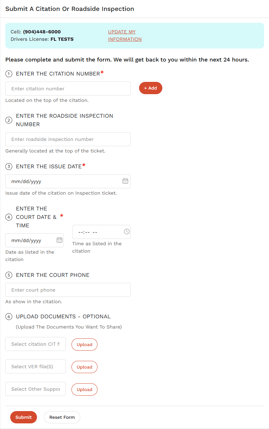
Information Needed to Complete This Form
To successfully submit your citation or roadside inspection, please have the following information available:
Citation Number (Required)
Enter the citation number exactly as it appears on your ticket.
This is typically located at the top of the citation.
If you have multiple citations, use the “+ Add” button to include additional numbers.
Roadside Inspection Number (If Applicable)
Enter the roadside inspection number if one was issued.
This is generally located at the top of the inspection ticket.
If no roadside inspection was issued, this field may be left blank.
Issue Date (Required)
Enter the date the citation or inspection ticket was issued.
Use the format mm/dd/yyyy.
This date appears on the citation or inspection document.
Court Date & Time (Required)
Enter the court date as listed on your citation (mm/dd/yyyy format).
Enter the exact court time as shown on the citation.
Be sure the date and time match the ticket precisely.
Court Phone Number
Provide the phone number for the court listed on your citation.
This helps expedite case verification and processing.
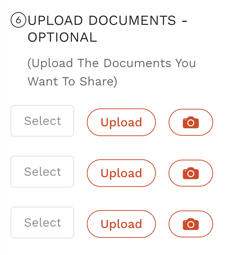
Upload Documents (Optional but Recommended)
You may upload supporting documents to assist with processing your case, including:
A copy of the citation
Roadside inspection (VER) documents
Any additional supporting documentation
Uploading clear copies of your documents helps prevent delays.
Note: If you are using the mobile app, you may tap the camera icon to take photos of your documents and upload them directly.
Please ensure all images are clear, fully visible (not cut off), and taken in good lighting. Avoid glare, lens flare, or shadows to prevent processing delays.
7. Once all required fields are completed, click Submit.
You will receive follow-up communication within approximately 24 hours.
If you need to start over at any time, select Reset Form.
Mobile
NOTE: The menu to access all of the Member Portal content on mobile will be under the "hamburger menu" to the right of the logo. Clicking it will show and hide the side navigation menu.