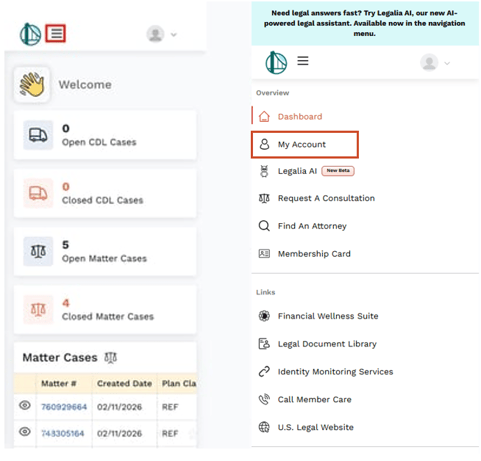
To update the credit card you have on file in the member portal, follow these steps.
-
Log in to the member portal.
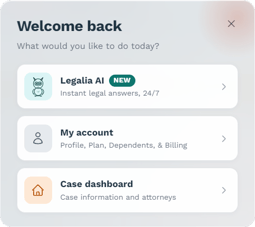
- Click My Account on the Welcome back pop-up.
-
Select Billing from the top navigation bar.

-
You'll see the main saved payment method screen in the center, showing your existing plan(s) and the last four digits of the card associated with them.
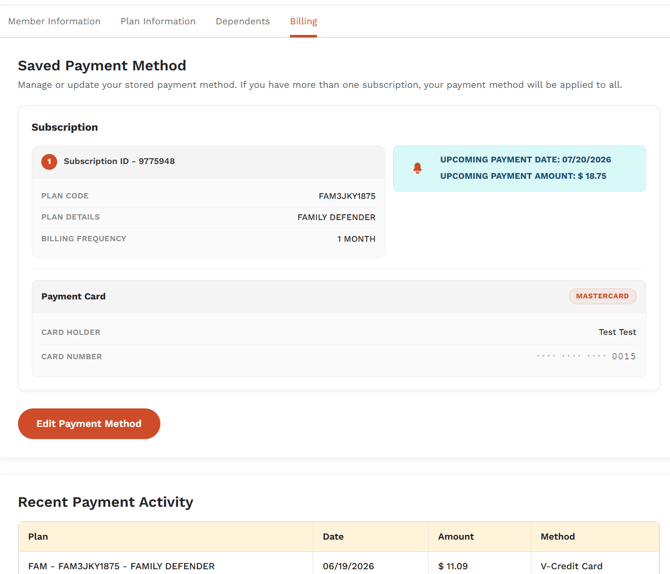
- To update the card you wish to be associated with your plans, click the Edit Payment Method button in the bottom left.

- You will be shown the payment method form.
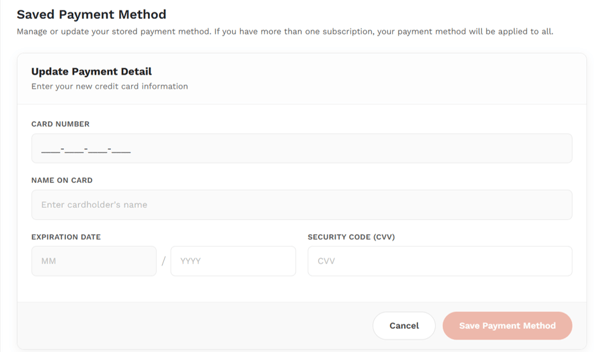
- Enter the card number for the card you wish to update your payments to.
- It will auto-populate the type of card it is (Mastercard, Visa, Discover, etc.).Then fill in the name on the card, the expiration date, and the CVV security code.
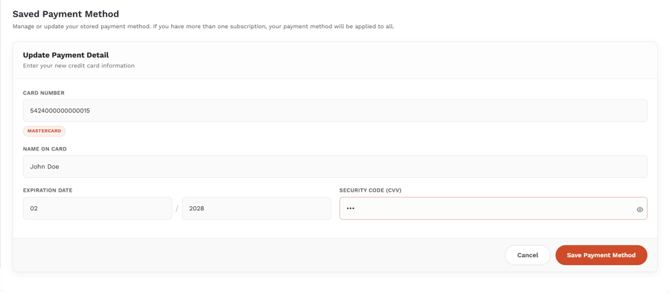
- Once you have entered all of the information, click the Save Payment Method button.

- The screen will refresh and show the last four digits of the updated card.

- The system will automatically transfer any existing membership subscriptions to the new card while preserving the original monthly renewal date of the 20th.
Mobile
NOTE: The menu to access all of the Member Portal content on mobile will be under the "hamburger menu" to the right of the logo. Clicking it will show and hide the side navigation menu.