
Legalia AI is included with every active U.S. Legal Services membership plan. If you are a member, it is there for you—available through the Member Portal any time you need it.
There are several ways to access the Member Portal:
1. Direct Link
You may go directly to the portal using the following link: https://member.uslegalservices.net/
2. Mobile App
You can also access the Member Portal through the U.S. Legal Services mobile app:
-
Google Play:
https://play.google.com/store/apps/details?id=net.uslegalservices.memberapp -
Apple App Store:
https://apps.apple.com/us/app/u-s-legal-services/id1332842928
3. Through the Website
Visit the main website at: https://uslegalservices.net/
If you are using the website, the link to get to the portals is in the top navigation bar.
Your Member Portal dashboard will look something like this, depending on your coverage and any cases you have submitted.
Desktop
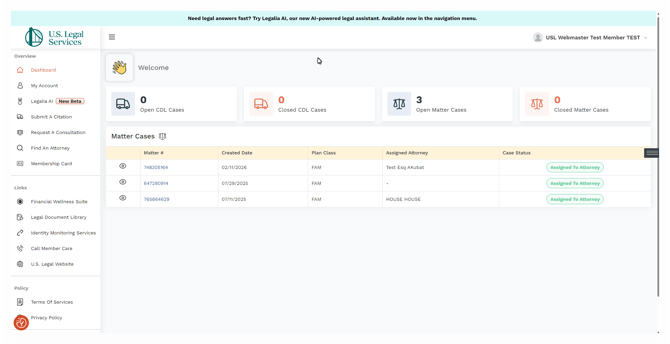
Click Legalia AI in the left side navigation panel.

Mobile
NOTE: The menu to access all of the Member Portal content on mobile will be under the hamburger menu to the right of the logo. Clicking it will show and hide the side navigation menu.
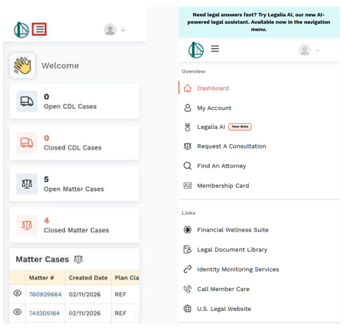
Click Legalia AI in the navigation panel that appears when you click the hamburger menu.
This will take you to the Legalia AI main screen.
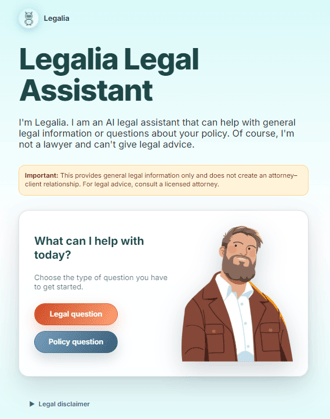
Here you can choose either a Policy Question or a Legal Question to start. You will be able to switch back and forth once the actual chat begins.
If you start with a Legal Question, you will be prompted for your ZIP code so that Legalia can pull specific legal information from your state and region.
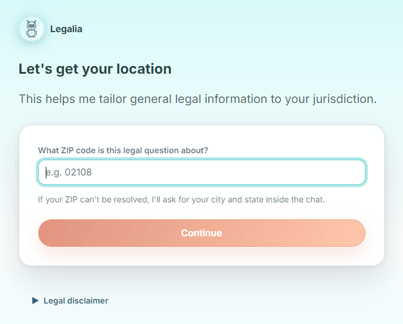
If you start with a Policy Question, Legalia AI will wait until you switch to asking a Legal Question before asking for your ZIP code.
Either choice will bring you to the main chat window. The top of the chat window will reflect which mode you are in and your state if you have entered your ZIP code.
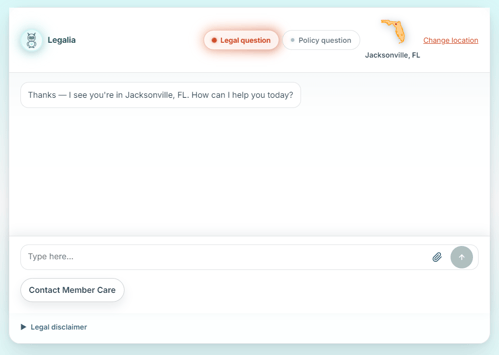
You can switch between Legal and Policy questions by clicking the appropriate button before you ask a question.
The conversation will reflect all questions and answers regardless of how often you switch between modes.
Clicking Contact Member Care

will open a form you can fill out and submit. Submitted forms create tickets for our Member Care team so they can contact you about your issue.
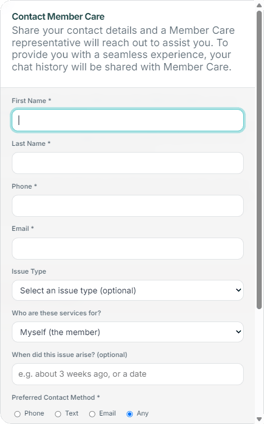
Should you wish to speak directly to an attorney, you can either contact Member Care directly, or engage the escalation process to fill out an escalation form.
The Request a Consultation button typically appears when Legalia AI determines that your question is likely to require assistance from a U.S. Legal Services Network Attorney rather than general legal information.

While every conversation is different, you may see the option when:
- You ask to speak with an attorney (for example, "I need a lawyer" or "Can I talk to an attorney?")
- You indicate that legal action has already begun, such as receiving court papers, being served with a lawsuit, or having an upcoming hearing or court date.
- You mention an important legal deadline, such as responding to a lawsuit, an eviction notice, a foreclosure sale, or another time-sensitive matter.
- You request assistance that typically requires an attorney, such as reviewing a contract or lease, responding to legal documents, negotiating a settlement, or representing you in a legal matter.
- Your situation involves a complex or high-risk legal issue where speaking with an attorney is appropriate.
The Request a Consultation option may also depend on the type of question you selected (Legal Question or Policy Question), the information you provide during the conversation, and how the portal evaluates your request.
If the button does not appear and you would like to speak with an attorney, you can always contact Member Care directly. Member Care can answer questions about your membership, determine whether your matter is covered, and begin the attorney assignment process when appropriate.
Important: The appearance of the Request a Consultation button is determined automatically by the portal based on your conversation and system settings. It is intended to help connect members with the appropriate resources when legal advice or attorney assistance may be needed.
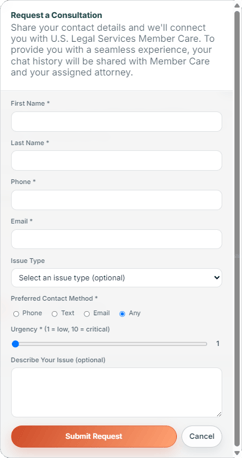
Once you submit a consultation request, your chat history will be emailed to you, and a ticket will be opened with the Member Care team, who will assign a network attorney to you.
If they do not have enough information, they may follow up with you to ensure the appropriate attorney is assigned.
You will be sent the contact information for the attorney once one is assigned. It is your responsibility to contact the attorney to schedule your consultation.
Member Care will follow up with you once an attorney is assigned to make sure you were able to book a consultation.